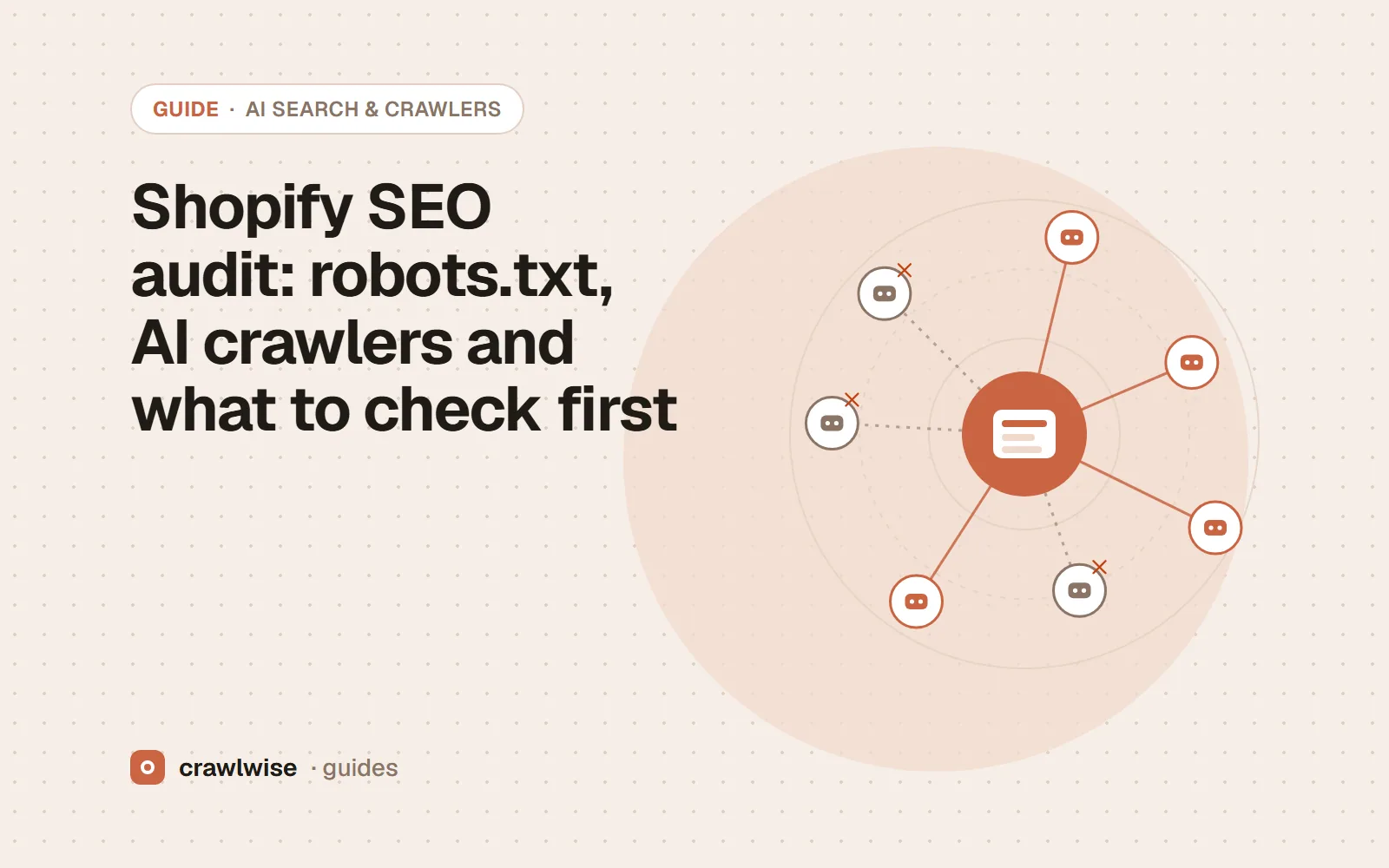
Shopify SEO audit: robots.txt, AI crawlers and what to check first
Shopify generates robots.txt from a theme template. To change which AI crawlers can read your store, add a robots.txt.liquid template that keeps Shopify’s default groups and appends your own User-agent group. Then audit the product and collection pages that earn traffic: canonicals, structured data and what the crawlers actually receive.
Key takeaways
- Shopify’s default robots.txt is generated; customise it with robots.txt.liquid, never a plain-text copy.
- Keep the default groups loop and add your crawler rules after it.
- robots.txt does not control Shopify Catalog feeds to agentic storefronts.
- Audit product and collection templates, not just the homepage.
A Shopify store gets a working robots.txt the day it opens. That is good for search, and it also means most store owners have never read the file that decides whether ChatGPT, Claude and Perplexity can fetch their pages. This guide walks through the audit in the order that finds problems fastest.
What does Shopify’s default robots.txt do?
Shopify describes its default file as optimal for SEO. It allows public content and disallows the admin, cart, checkout, account and order pages, plus filtered and sorted collection URLs that would otherwise multiply into thousands of near-duplicates. Open https://your-store.com/robots.txt to see yours.
How do you allow or block an AI crawler on Shopify?
In the admin, go to Online Store, open the theme menu, choose Edit code, add a new template and pick robots. That creates robots.txt.liquid. Keep Shopify’s loop over robots.default_groups so future SEO updates still reach you, and add your own group after it:
{% for group in robots.default_groups %}
  {{- group.user_agent }}
  {%- for rule in group.rules -%}
    {{ rule }}
  {%- endfor -%}
  {%- if group.sitemap != blank -%}
    {{ group.sitemap }}
  {%- endif -%}
{% endfor %}

User-agent: GPTBot
Disallow: /
That example opts out of OpenAI’s training crawler while leaving OAI-SearchBot, which fetches pages for ChatGPT search, untouched. Which crawlers to open or close is a business choice; which AI crawlers to allow lays out the trade.
Keep the default groups loop. A plain-text robots.txt pasted into the template stops receiving Shopify’s fixes the day you save it.
Adnan Arodiya, Crawlwise
What should you not do?
- Do not replace the template with static text. Shopify strongly advises against it, because the rules go stale and miss future SEO updates.
- Do not reproduce old default groups by hand. Shopify notes a custom template can output rules the current default no longer has, such as
Disallow: /search. - Remember that uploading a theme through the admin does not import
robots.txt.liquid; ThemeKit or the CLI preserves it. - Do not put a proxy in front of the store to manage bots. Shopify handles bot management at the network layer and does not recommend one.
Which store pages should the audit cover?
Audit one page from each template that earns traffic: the homepage, a collection, a product and a blog article. On each, check that the title and meta description are written for that page rather than inherited from the theme, that the canonical points to the clean product URL rather than a collection-scoped copy, that Product structured data validates with a price and availability, and that the product description is present in the server HTML rather than injected by an app after load. Apps are the most common source of surprises here: review widgets, translation layers and page builders can all change what a crawler receives.
Finally, confirm your sitemap at /sitemap.xml is listed in robots.txt and submitted in Search Console and Bing Webmaster Tools.
Check it on your own Shopify site
Run the free AI crawler checker on your homepage and one product or article page. It reads your robots.txt the way each crawler does, then fetches the page as GPTBot, ClaudeBot, PerplexityBot and 14 others, so a block added by a CDN, firewall or app shows up even when the file looks right. The robots.txt tester shows which rule decides a given path, and a full audit adds titles, canonicals, structured data, hreflang and performance for the same URL.
To see how popular sites set these rules, look any of them up in the site-by-site AI crawler results.
What a plan actually costs
The free tools stay free. You can open them, run them, and leave without an account. A plan is for the moment you want the report saved, a few sites watched, or the same checks from the API. The price on this table is the price at checkout. A yearly plan is ten months of the monthly price, so two months are on us.
| Plan | Monthly | Credits | A good fit when |
|---|---|---|---|
| Starter | $4.99 | 10 | You look after one site and check it now and then |
| Pro | $14.99 | 40 | A few sites, plus the API and a handful of watched URLs |
| Studio | $49.99 | 150 | Client work that would burn through Pro mid-month |
| Agency | $99.99 | 400 | Many locations, reported under your own name |
A single-page audit is about 1.25 credits, and that includes the live probe of answer-engine crawlers. You see the estimate before anything runs. If a hold is not used, it comes back to your balance. Extra credits, when you already subscribe, are $9.99 for 20.
Frequently asked questions
Does Shopify block AI crawlers by default?
Shopify’s default robots.txt allows public content and disallows admin, cart, checkout, account and filtered collection URLs. Its help article does not list AI crawlers in the default file; to block or allow one, you add a group to robots.txt.liquid.
Will blocking GPTBot keep my products out of ChatGPT?
Not entirely. Shopify says robots.txt rules affect open-web discoverability only, and do not stop Shopify Catalog from sending product data to agentic storefronts such as ChatGPT or Microsoft Copilot. Those are controlled in the agentic storefronts settings.
Will Shopify Support help me edit robots.txt.liquid?
No. Shopify calls it an unsupported customization and suggests hiring a Shopify Partner if you need help.
Sources
Platform documentation was read on 2026-10-08. Platforms change these pages and settings without notice, so check the original before you act on a detail.
Crawlwise vs checking inside Shopify
Shows the robots.txt your visitors and crawlers receive
- Crawlwise
- Yes, fetched live
- Shopify admin
- Only by opening /robots.txt yourself
Fetches the page as each AI crawler
- Crawlwise
- Yes, 17 crawlers
- Shopify admin
- No
Catches CDN and firewall blocks
- Crawlwise
- Yes, with challenge fingerprints
- Shopify admin
- No
Edits your Shopify settings for you
- Crawlwise
- No — it tells you what to change
- Shopify admin
- Yes, it is where you make the change
Try it on your URL
Run the checks on your live site
Free tools answer one question. A full audit scores the page, tests answer-engine crawlers, and saves to history on a plan.
- Live crawler probes
- Core Web Vitals
- One free full audit
Meet the author

Adnan Arodiya
Crawlwise
Writes about what Crawlwise actually measures: on-page evidence, crawler access, and performance signals — with the limits stated up front.